Product
Cluster, Goal, and Action
The unit of work is a topic, or CLUSTER, not a single article, file, or piece of information. I call the configuration of one monitored topic a GOAL. A Goal has five parts. First are the sources I collect texts from, and the FILTER, which drops texts unrelated to the topic. Next come the GROUPING THRESHOLDS, which decide when texts land in the same Cluster, and the WORKFLOW, the steps that prepare the result. The last is the ACTION, the place where the finished result goes, for example WordPress, email, or a webhook. Put simply: you say what you want to watch, and the system makes sure you get new findings every day.
A Cluster produces one of two things. In direct mode you get just the list of sources, with no model involved. When you turn on a Workflow, you get a text written by agents, which you can refine in the AI Editor.
I show the whole process in a video with a Polish voiceover. It runs about two minutes and goes from reports on drug reimbursement to a finished text: through Clusters in several languages, knowledge from PubMed, Wikipedia, and your own API, change proposals in the AI Editor, fact checking, and delivery.
Starting point
Why did I build SemanticHub?
I built it because going through many sources meant reading about the same thing over and over, and checking the news on many sites every day took too much time. The same story showed up on many portals in almost the same version. Each time I had to open another text to see whether it added anything new.
I run pracamedyka.pl. Together with the whole editorial team, we try to report on the state of both the Polish and the global medical market, so we have to watch thousands of sources. Some of them publish in other languages, and some write about things that don't concern us at all. Doing this by hand, every day, and doing it well is not possible.
I wasn't looking for another RSS reader that shows everything in order of publication. I needed a tool that drops texts unrelated to the topic and merges texts about the same story into one topic, even when they are in different languages. It should show that topic once, together with its sources. What to do with it is still a human decision.
Order of work
How does SemanticHub work? (broadly speaking)
SemanticHub works in six steps, and by default the last word belongs to a person. I describe them so that someone who has never set up monitoring can follow.
- Sources deliver new publications. You point to portals and channels, and the system checks on its own whether anything new has appeared.
- Your Filter evaluates each publication against the description you set and records its reasoning. You can later read the result of the decision the model made.
- Clusters merge articles about the same story by meaning and publication time, regardless of language.
- The Workflow is optional. You define it yourself, as you like, and it can do anything with a Cluster: prepare an analysis, a summary, or a draft based on its materials. It can also write you notes, notify you, or trigger another automation.
- A person reviews the result in Post moderation: reads the text and sources, then approves or rejects it.
- The Action delivers the approved result to the recipient.
Step 5 rests on an approach I call ADE, or Agentic Driven Editor. In an ordinary editor a person writes the text and the tool at most fixes typos. In ADE an agent prepares the text, and the person stays the editor: reads, judges, and decides.
The agent has one limit, which is the heart of this approach: it can only propose. It doesn't write changes into the document. Each proposal appears next to the old passage, and you accept or reject it individually. The text changes only after you accept.
The agent doesn't write from the model's memory. It reads the current Cluster: the sources, portals, dates, and article content. On your request it also searches your earlier Clusters, adds sources, queries a connected knowledge base (PubMed, Polish Wikipedia, or your API), and looks for fresher material on the web.
You can send sentences with numbers and claims to fact checking. The result is one of three: consistent with sources, contradicted by sources, or not covered by sources. This is not truth verification, only a comparison of the text with the material the agent received. If a check fails, the sentence is marked as unchecked and doesn't block the text.
The agent's session keeps a record of the actions it took and why it reached for them, so you can retrace its path. The agent also writes according to the section contract set for the Goal, so the layout of the text matches what your WordPress or your site supports: the text uses your components and sections. After you approve it, the result goes to the recipient.
The diagram below shows the same path from new publications to delivery.
- Source / input
- Filter and grouping
- AI step
- Delivery
- Human decision
Workflow steps
- In Sources you point to the public sites and channels that supply new material.
- The Filter compares each publication with the Goal's instructions and records the reasoning behind its decision.
- Clusters group the accepted articles and wait until they meet the conditions for preparing a result, which you set in the Goal.
- If the Workflow is on, its agents work on the Cluster's materials.
- In Post moderation you read the text and sources, then approve or reject the result.
- The Action sends the approved result to the recipient, but only after you turn on production delivery.
Two things are worth knowing before your first Goal. A new Goal doesn't pick up older articles and waits for new publications, so the first result won't appear right away. Also, a Cluster's relevance and coherence say how well the materials fit together, and say nothing about the publisher's credibility.
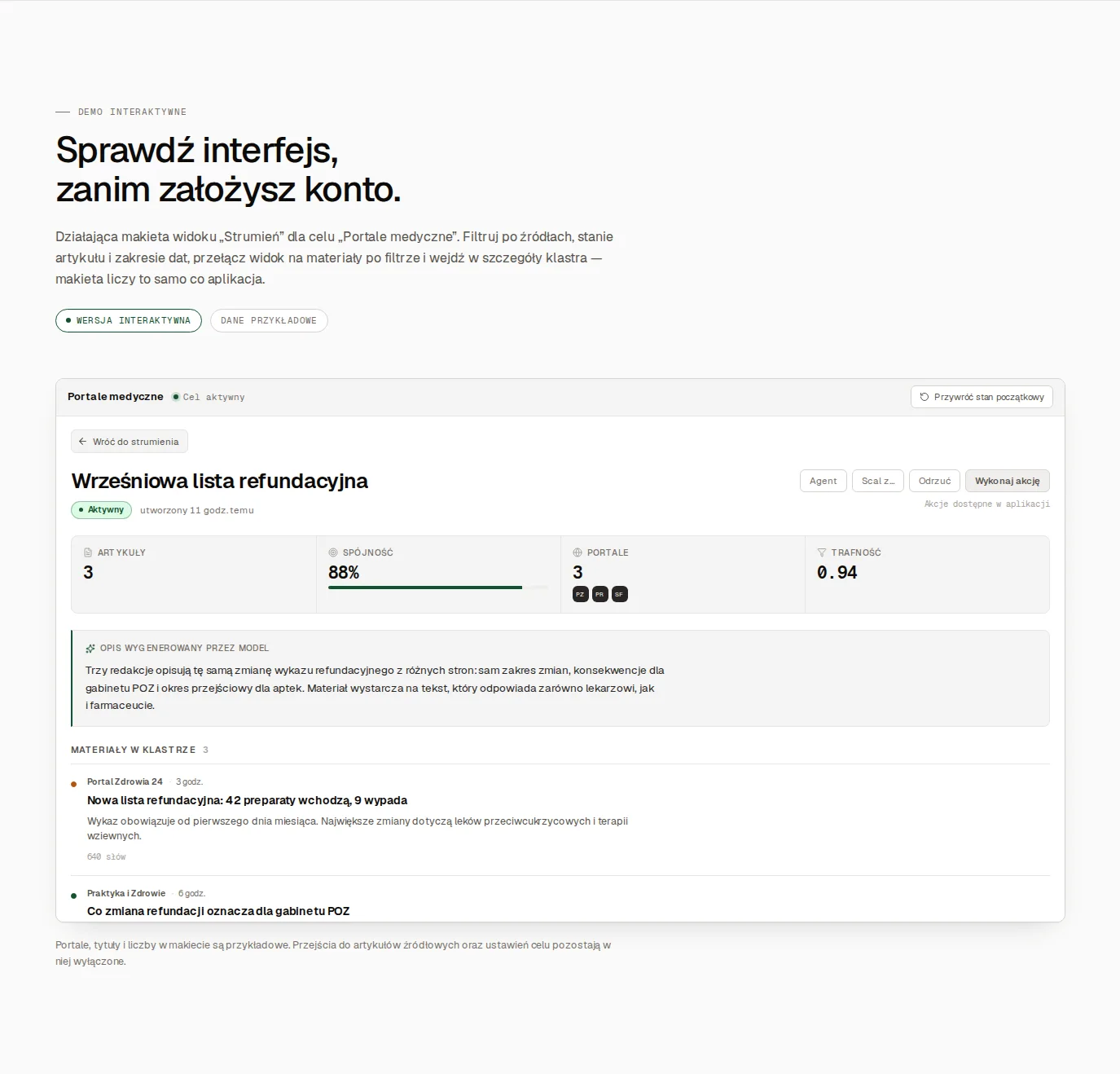
Below you can see the details of a Cluster, and under it two short silent clips: the path from Sources to the Feed, and choosing a Cluster and its sources.
Comparison
How is SemanticHub different from an RSS reader?
A classic RSS reader shows every entry from your subscribed feeds separately, usually in chronological order. SemanticHub groups articles about the same story into a Cluster and turns it into a text or a roundup of sources. These are two different kinds of tools, and both make sense.
The difference starts with duplicates. When one topic appears on 10 sites, an RSS reader gives you 10 items to go through. In my measurements, echo makes up 21–34% of the feed, so with many feeds a lot of time goes on items you have already seen.
SemanticHub supports the same feeds as a reader, meaning RSS and Atom, plus XML sitemaps, public Telegram channels and Bluesky. You can move your source list over from a reader with an OPML import.
The other differences concern how you work with the content. The Filter works from a topic description written in plain words, not from keywords. Articles about the same story land in one Cluster even when they come from different sources and languages. From a Cluster, SemanticHub produces a text or a roundup and sends it to your CMS, by email, or through a webhook.
Here it is in a table.
| What I compare | RSS reader | SemanticHub |
|---|---|---|
| How content is shown | Every entry separately, usually in chronological order | Articles about the same story in one Cluster, even from different sources and languages |
| Choosing content | Usually keywords | A Filter based on a topic description written in plain words |
| Multiple languages | Usually no understanding of the content: entries in different languages are separate items | Automatic multilingual understanding: the Filter and Clusters also work on articles in other languages |
| Translation | Usually outside the reader, done manually | On-demand translation of an article into Polish or English, ordered in the Feed when you need it |
| Sources | RSS and Atom | RSS, Atom, XML sitemaps, public Telegram and Bluesky |
| Output | A list of entries to read | A text or a roundup of sources prepared from a Cluster |
| Delivery | You read inside the reader itself | CMS, email or webhook |
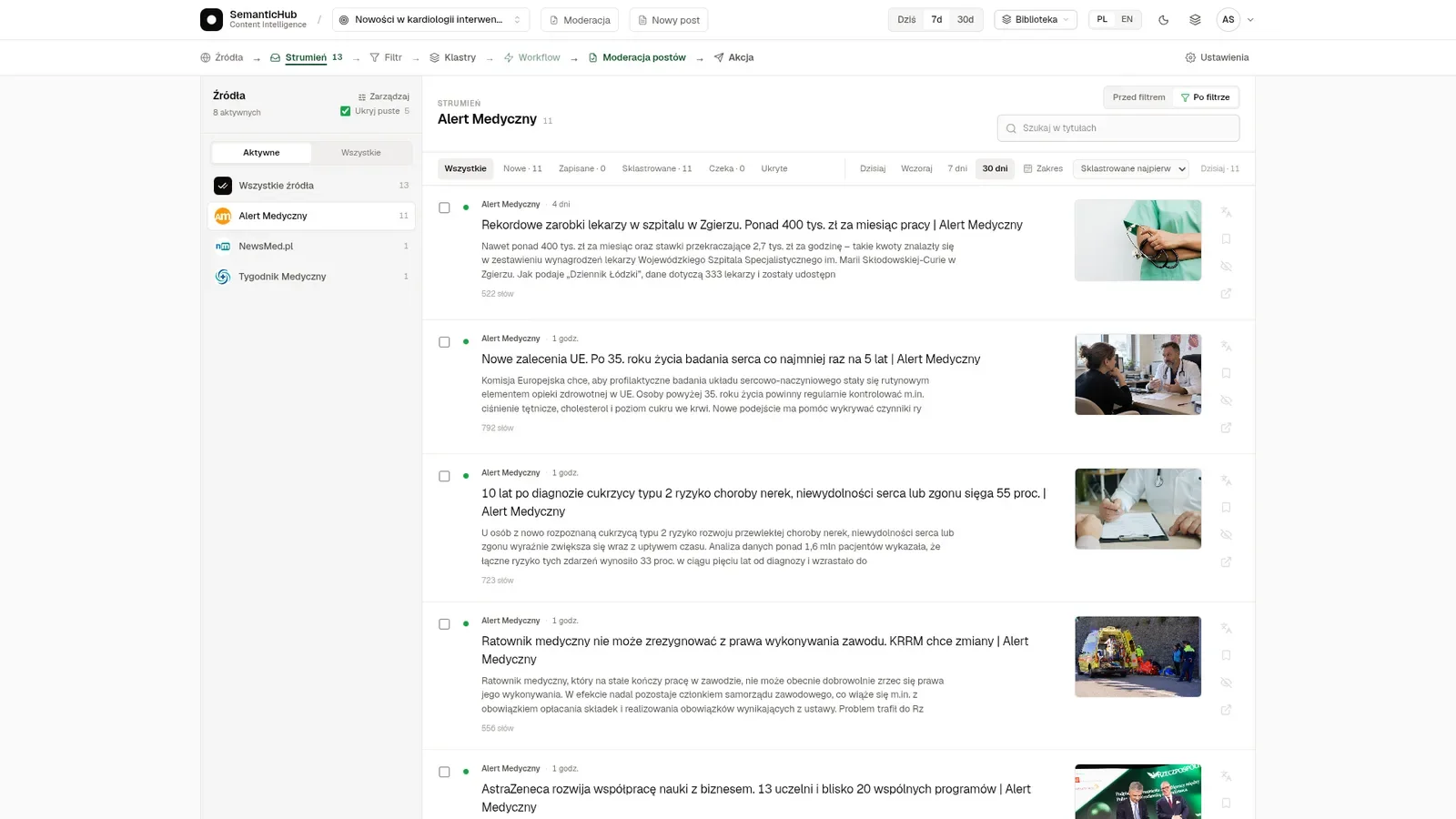
The Feed section works a bit like a classic RSS reader. On the left you have the list of sources, and next to it the collected articles with thumbnails, so you can browse them as in an ordinary reader. You switch between the "Before filter" and "After filter" views to see what the system rejected, and you can read the reasoning behind each decision in the Filter tab. When an article is in a foreign language, you order its translation into Polish or English. The Feed is not the end of the road, though: it is where you look over the collected material before choosing topics to write up.
Use cases
Who is SemanticHub for?
SemanticHub has more uses than the first thing that comes to mind, a media monitoring tool. The simplest is writing blog content or supporting a newsroom: it collects reports on one story, combines them into a topic and prepares a draft for you to approve. You could just as well set the Filter to look for current calls for renewable energy (OZE) funding programs and get an email whenever something new appears. In the same way you can follow announcements from institutions, public procurement and tenders, a foreign market in several languages, or new research in your field. The limit is mostly what you can describe in plain words and where the content can be fetched from. A few examples are below.
Blog and industry newsroom
Collects reports on one story and passes an approved draft with sources to the WordPress plugin.
Expert and author
Picks topics to write up. Direct mode gives you just the Cluster with its sources, while a Workflow produces a summary or a draft.
Funding calls and institutional announcements
Picks out relevant decisions and current funding calls, for example for renewable energy, from public sources via RSS or a sitemap. You get the notification by email.
Procurement and tenders
A setup built from the general-purpose mechanisms. The model reads the deadline from the text, and a person checks it.
Foreign markets
Reports in several languages land in one Cluster. I have not systematically tested Chinese-language sources.
Science for practitioners
Publisher RSS feeds and a study note, to which PubMed adds context. The practitioner judges what the findings mean.
Each of these uses is a separate Goal with its own Filter, its own sources and its own Action. A blog draft goes to WordPress, and a notice about a new funding call arrives by email or triggers your automation through a webhook. The Filter handles specifics well. Instead of a broad term like "OZE", describe which calls you are looking for: who can apply and what the funding covers. If your audiences have different needs, split them into separate Goals, because one Filter will not satisfy everyone.
System elements
System elements, one by one
Below I go through the elements SemanticHub is built from, in order: Sources, Filter and Clusters, then Workflow, AI Editor, moderation and delivery of the result. At the end I show how to set the same elements up for three concrete tasks. When you get no result, look for the cause in this order: Sources first, then Filter, and change Cluster thresholds last. Sources break most often, and an error at the input later looks like a bad Filter.
Sources
A source is a site, channel or profile that SemanticHub pulls new articles from. I support sites with an RSS or Atom feed, XML sitemaps, public Telegram channels and public Bluesky profiles. You add sources by searching for a site in the catalog or by pasting its address, either the site or the feed itself. The system looks for the feed with new articles on its own and checks whether that site is already in the catalog. You can load a list from another reader with an OPML import.
SemanticHub visits sources regularly, saves only new URLs and fetches the article content. A source must be publicly accessible, and its articles can be in different languages. I don't support Facebook, LinkedIn, X, YouTube, Reddit or PDF files yet, so data from those sources won't reach the system.
Feed
The Feed is our equivalent of an RSS reader. You'll find it in every Goal: the list of sources on the left, and next to it the collected articles with thumbnails, titles and the beginning of the text. You can browse them as in any reader, narrow them to one source or to the last few days, and search by title.
The most important control is the “Before filter” and “After filter” switch. The first view shows everything the sources collected, the second only what passed the Filter. That makes it easy to check whether the Filter rejects too much or too little. When an article is in a foreign language, you can translate it into Polish or English in the Feed. The Knowledge bases I describe below don't appear in the Feed.
Filter
The Filter is an instruction that says which articles interest you. Each new article is evaluated separately for every Goal that uses the given source. Articles that don't meet the criteria don't move on to clustering. An empty or disabled Filter lets all new articles through.
You describe the Filter in plain words: the topic, the region, what to accept, what to reject, and exceptions. By default the model evaluates the title and a text excerpt, and you can attach the full content, which improves accuracy.
Sending full content for every article cost USD 13.39 per 100k evaluations. The cascade started with the title alone, added 300 characters of the intro when confidence was below 84%, and gave the model the full text only when confidence was below 81%. Cost fell to about USD 1.42, and recall was 97.14%. When I handed the last stage to a cheaper model, cost fell to USD 1.19 but recall fell to 89.52%, so that saving wasn't worth the lost articles. This was an experiment on a single Goal, not a description of how production works.
You can inspect the Filter's decisions. In the Feed you switch between the “Before filter” and “After filter” views, and you read the reasoning in the Filter tab. When the model provider has a temporary outage, the Filter lets the article through; on a configuration error, it rejects it.
Clusters
A Cluster is a set of articles about the same matter. The easiest way to picture it: the system puts all texts about the same event on one pile, regardless of site and language. It does this by comparing the meaning of the articles and their publication time, not just the words. The pile grows until it meets the conditions set in the Goal. Thresholds decide when a Cluster is ready:
- Similarity sets how alike articles must be to land in one Cluster. Raise the threshold when different matters get mixed in one Cluster, and lower it when one topic is split across too many groups.
- Min. articles is the number of items a Cluster must collect before the system sends the text to moderation or, in moderation-skipping mode, sends it to you directly. Below this number the topic isn't passed on.
- The fast lane threshold speeds up passing a Cluster to moderation: when the given number of articles arrives in a short time, the system doesn't wait any longer, because the story is getting loud.
- Holdback sets how long the system waits for more items in a Cluster. Set a low value when you want the freshest news. For evergreen content, a longer wait makes sense.
- Debounce is a short pause after a new article appears. The system waits until the stream of items quiets down and only then regroups the articles into Clusters. That way it doesn't recalculate groups after every single publication when sites add texts one after another.
- Article lifetime is the maximum age of an item the system still considers. Older articles stop being added to Clusters. A short lifetime suits breaking news, a long one suits evergreen topics.
Only when a Cluster meets these conditions, or you accept it manually, does it go to the Workflow. If the Workflow is published and enabled, it prepares new results automatically. Without a Workflow, the result contains the Cluster description and the source articles, with no extra text from the model.
You can also add web research to a Cluster. SemanticHub then looks for material on the same matter that isn't in your sources, and the sites it finds go to the Suggested sites list. You decide whether to accept them. In a Workflow, an agent can also search the web on its own if you enable that skill for it.
You can also reject or merge Clusters manually.
Workflow
A Workflow is the element that processes the information collected in Clusters according to your needs. What a given Workflow does and what results it returns is up to you: a short note, an analysis, a finished article or a notification.
A Workflow is a chain of steps that starts at a Cluster and ends at an Action. Each step is an agent with its own task, model, skills and prompt, and the connections between steps set the order and pass results along. At the end, the Composer shapes the result into the form the recipient needs, for example a WordPress post. A test run sends nothing, so you can safely check how the Workflow behaves. To make it run automatically, you have to publish and enable it.
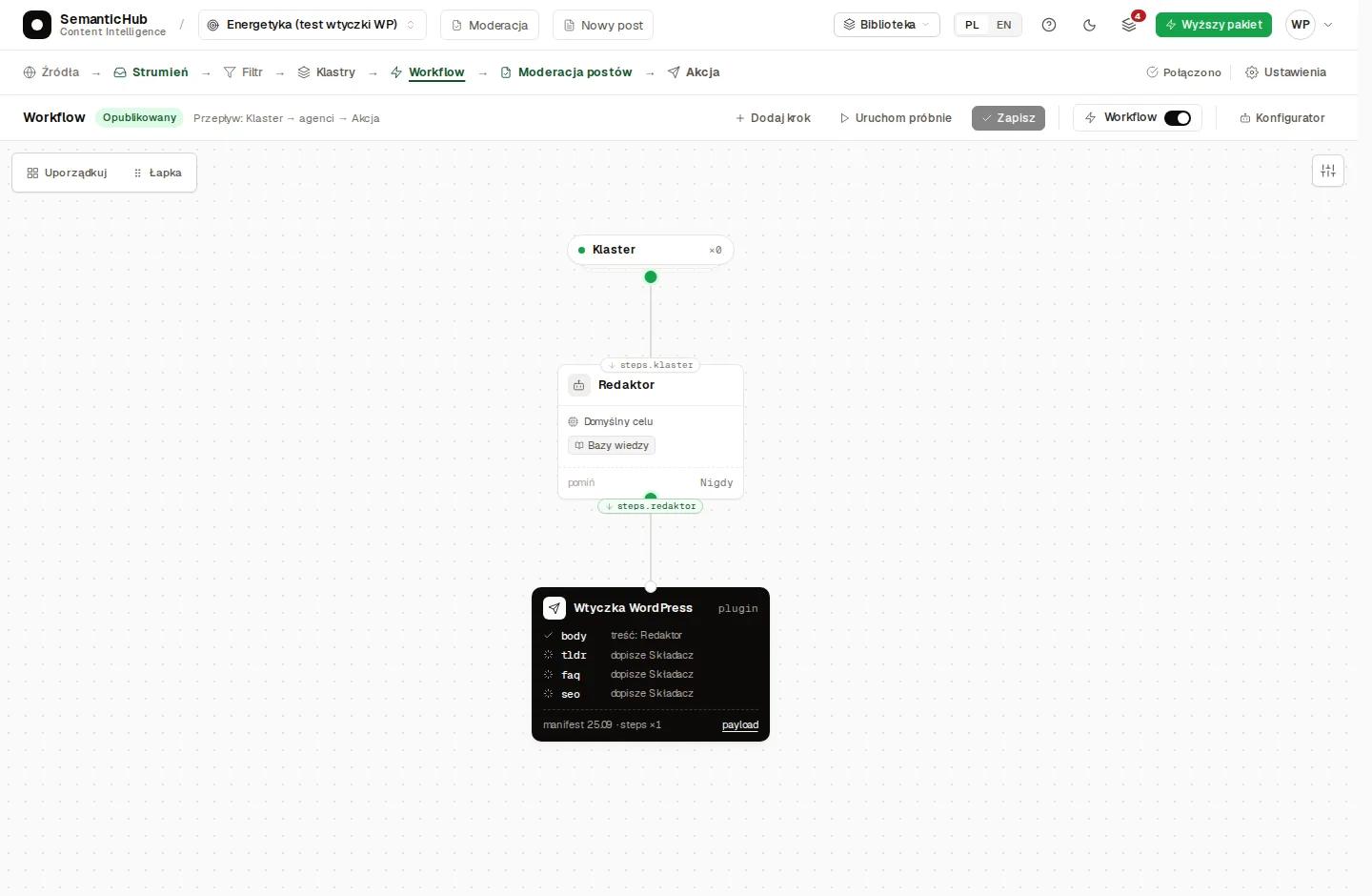
I've prepared ready-made templates in the system that you can use as a starting point. There are currently seven templates, but in practice you choose between three levels. The simple one is the Editor, a single agent. The standard one has three steps: Source Analyst, Writer and Proofreader. The advanced one is Newsroom SEO with eight agents, the only template with web search. I personally recommend starting from a ready-made template and adding a step only when you can say how it will affect the final result.
| Level | Flow | Use |
|---|---|---|
| Simple | Editor: one agent | A short text from the Cluster's materials. |
| Standard | Source Analyst, Writer, Proofreader: three steps | Separates analysis, draft and proofreading, without web search. |
| Advanced | Newsroom SEO: eight agents | A longer piece with web research and further editorial stages. |
The diagram below shows the middle level. The Source Analyst puts together the facts and the differences between reports, the Writer writes a draft, and the Proofreader fixes the language. Then the result goes to Post moderation and only after your acceptance to the recipient.
- Source / input
- AI step
- Delivery
- Human decision
Workflow steps
- You pick a Cluster about one event that interests your site's audience.
- The Source Analyst puts together the facts, the differences between reports and the gaps in the material.
- The Writer writes a draft based on the analysis and the Cluster's materials.
- The Proofreader reviews the language and passes the text to the Composer.
- In Post moderation you check the claims and sources before you accept the result.
- After acceptance, the Action sends the result to WordPress, if delivery runs in production mode.
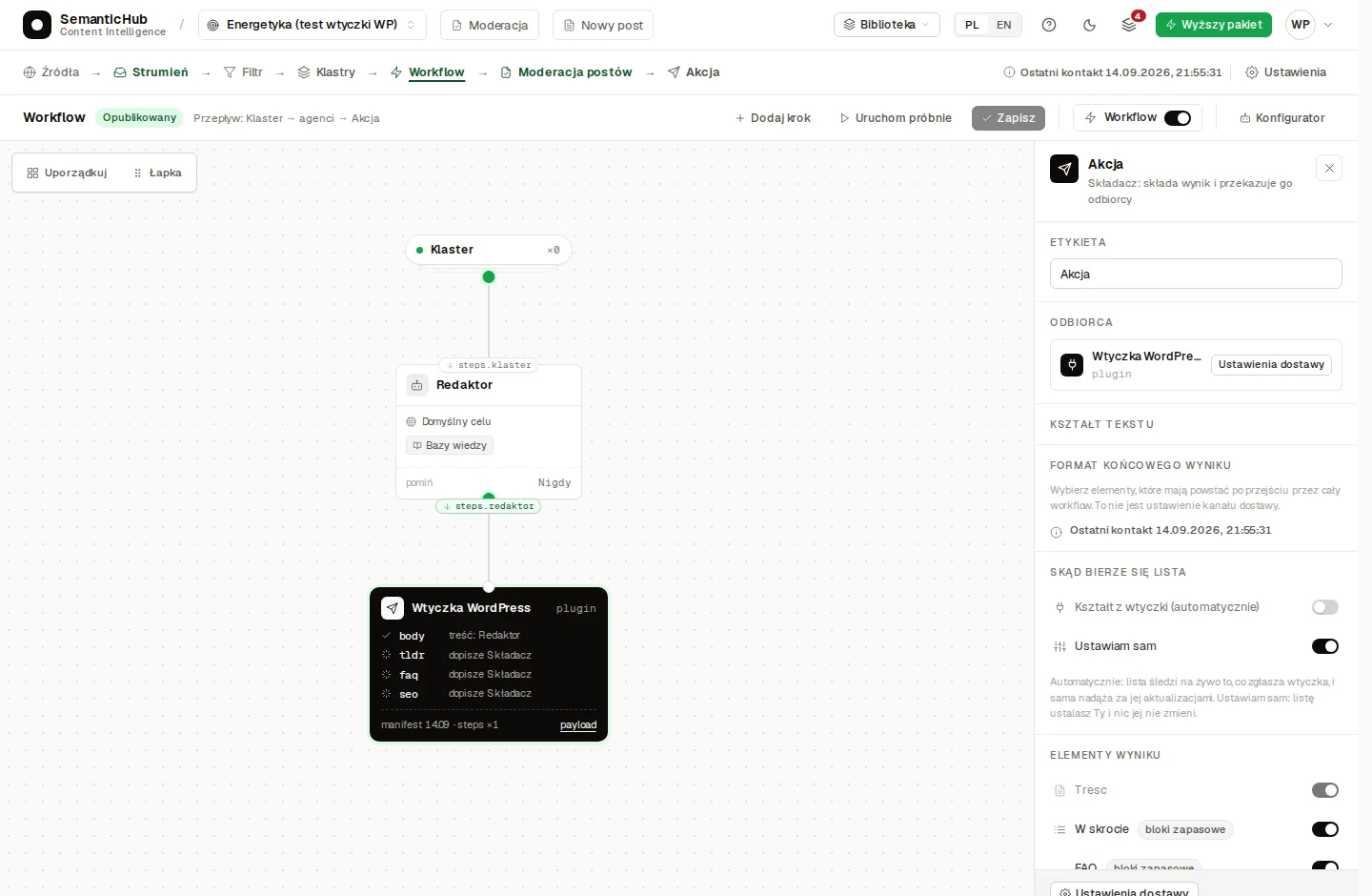
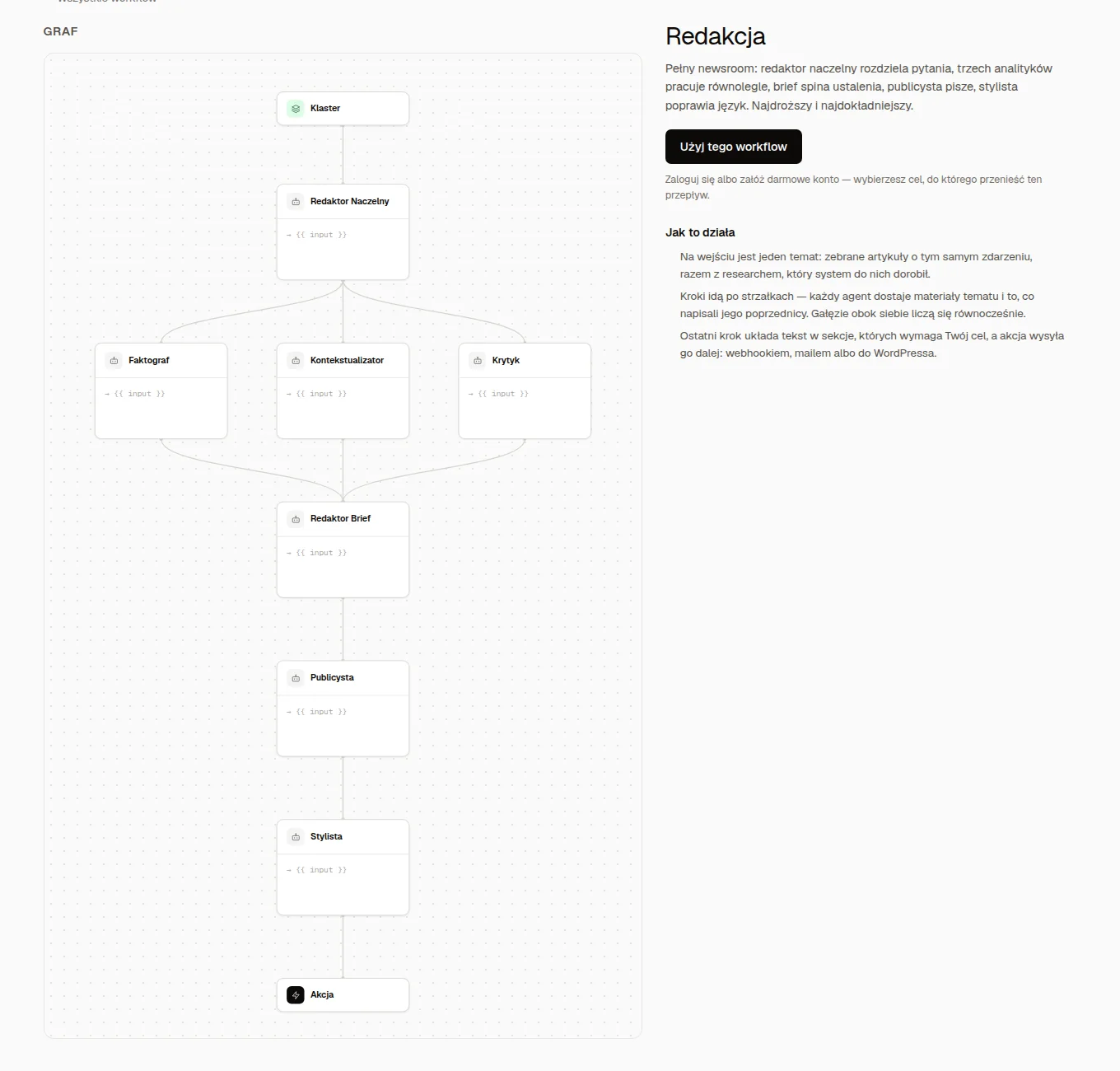
The most extensive template is Newsroom, which unfortunately doesn't fit in the Free plan. It has seven agents, including three parallel analyses: Fact Analyst, Contextualizer and Critic. Together with the input and the Action, that makes nine nodes, and the node limits are 5 on Free, 20 on Pro and 60 on Scale. The full Newsroom therefore requires the Pro or Scale plan.
- Source / input
- AI step
- Delivery
Workflow steps
- The Cluster supplies source materials on the chosen topic.
- The Chief Editor sets the task and routes it to three parallel analyses.
- The Fact Analyst, Contextualizer and Critic work at the same time, each on a different aspect.
- The Brief Editor merges the analyses into one brief for the Columnist.
- The Columnist writes the article from the brief and the Cluster's materials.
- The Stylist edits the text according to the instruction in their step.
- The Composer builds the result, and with manual approval a human reviews it before delivery.
- The Action sends the approved result, and nine nodes require the Pro or Scale plan.
AI Editor and Post moderation
In SemanticHub, the last word is always yours. The AI Editor handles review of the material the Workflow prepared. You work in it in the classic way, editing text as in an ordinary editor, but also with an agent, with the help of AI. The AI agent proposes changes as a diff, and you accept or reject each one separately. The editor has three panels: the Cluster's sources, the document and the conversation with the agent.
So remember: before a result reaches the recipient, we recommend moderating it in Post moderation. There you read the text together with highlighted source materials, then accept the result or reject it. By default nothing is sent without your acceptance.
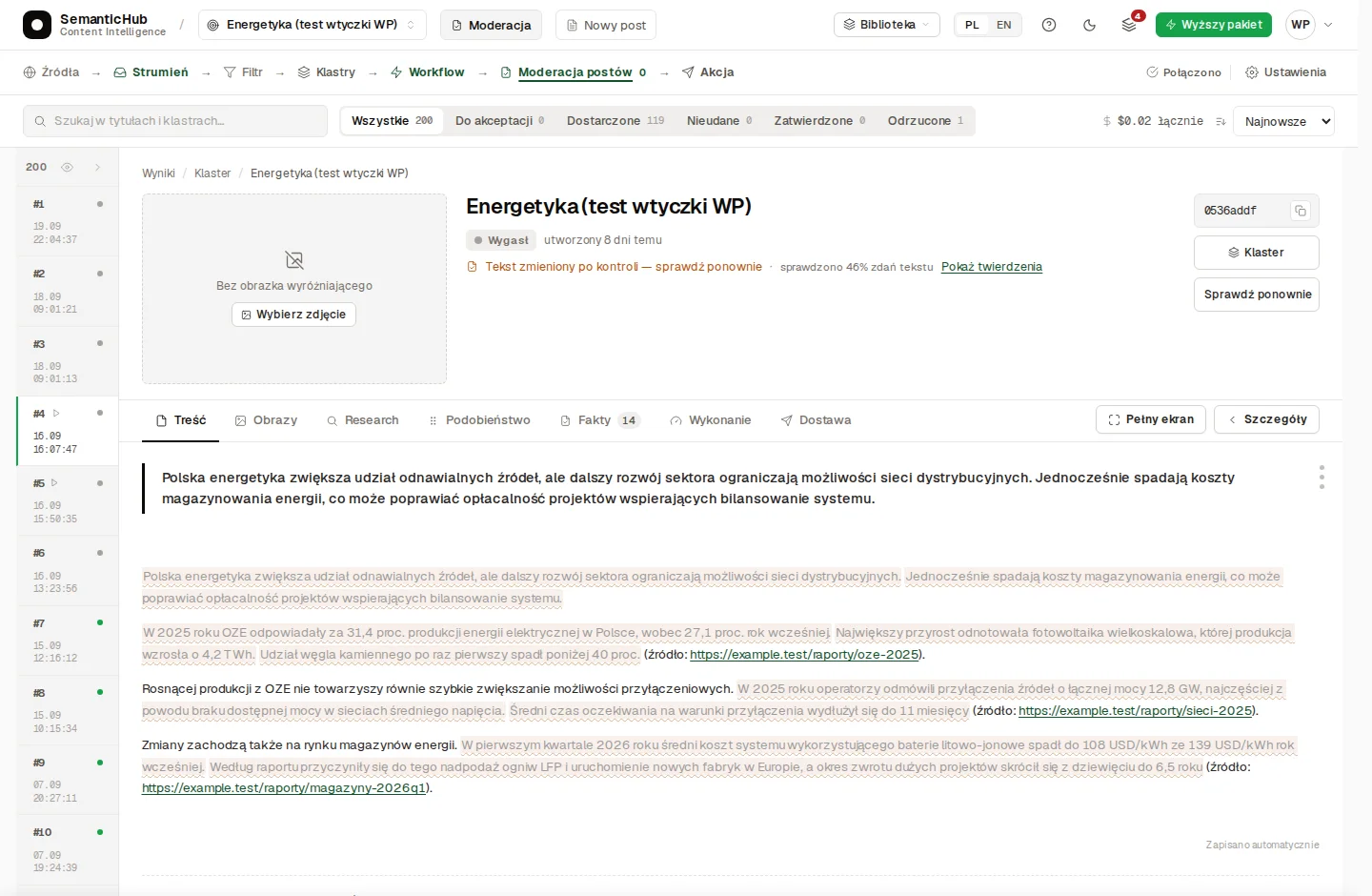
Fact checking
Fact checking extracts claims from the text and compares them only with the Cluster's materials. Each one gets a verdict: supported, contradicted, or not found.
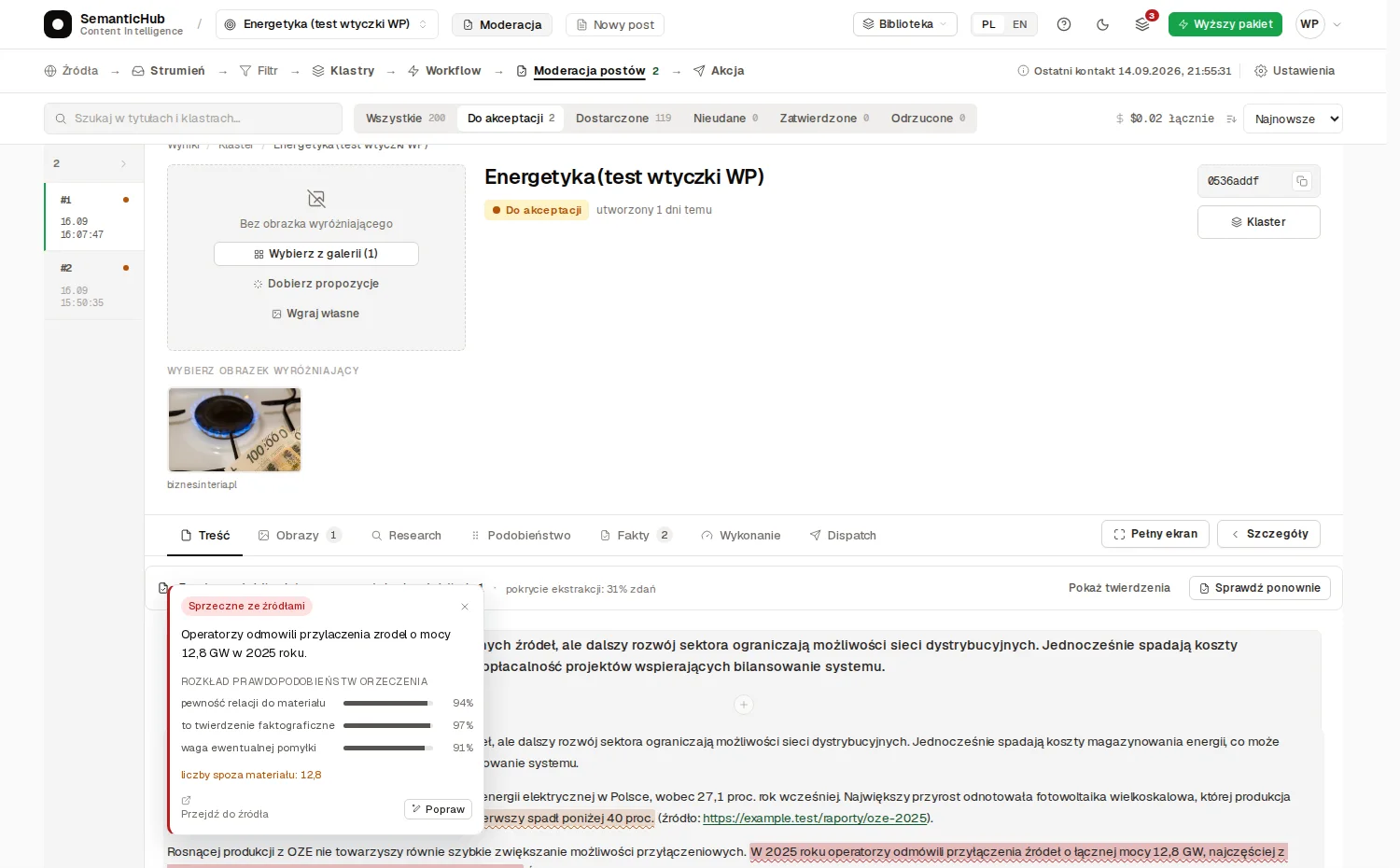
A result of “consistent with sources” doesn't mean “true”. If sites repeat the same error, a text consistent with them contains it too. Manual checking works on every plan, and automatic checking from the Pro plan.
Where does a post go after moderation?
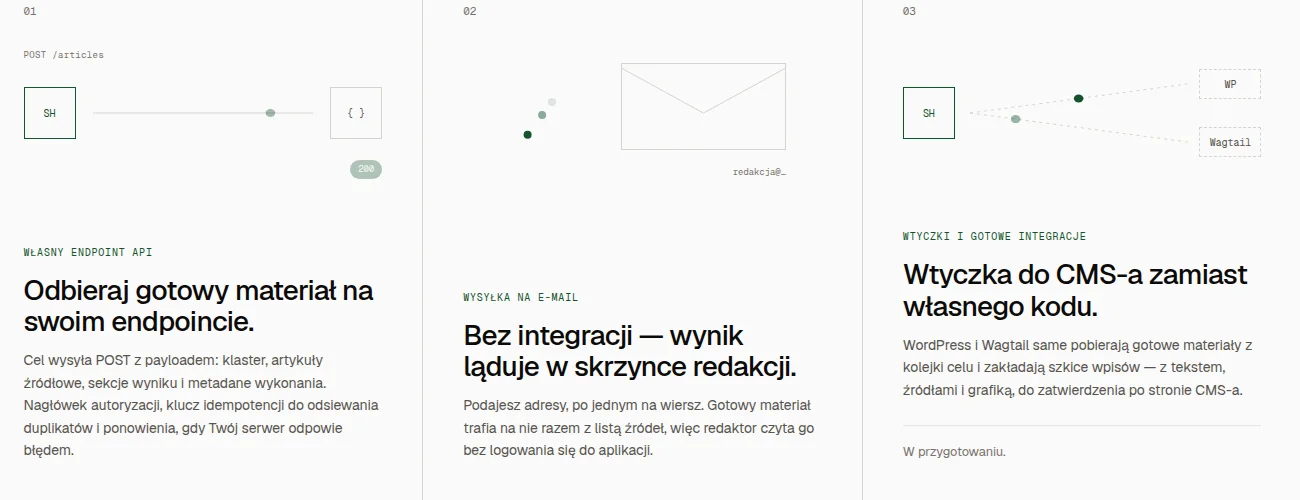
There are several options. The simplest is saving results in the SemanticHub database. From there you can copy their content manually or read them every day in processed form. If you want to write blog posts, use the WordPress integration, and if you have another CMS, a webhook. You can also get everything by email and forward the materials from there.
Saved in SemanticHub
Plugins
Webhook
For plugins, the schema of the data sent is set automatically, for example based on your WordPress installation.
Use cases
Will SemanticHub work for monitoring tenders?
Yes. There is no separate tender module, but you can set up the same elements to watch notices. You configure the Sources and the Filter yourself. In the Workflow you can add specialized agents: one judges whether a tender matches your criteria, and the other reads the deadlines, CPV codes, value and contracting authority from the notice.
The sources are simply sites with notices. The Filter describes the subject of the contract, the value threshold and the region, for example “only contracts for X above threshold Y in region Z”.
The diagram below shows the whole path: from a notice fetched from a site, through two dedicated agents, to delivery. You send the result by email or by webhook to a CRM.
- Source / input
- Filter and grouping
- AI step
- Delivery
Workflow steps
- Add the sites with notices as sources.
- In the Filter, describe subject X, threshold Y and region Z, and how to treat missing data.
- Check that the Cluster concerns a single contract and doesn't mix contracting authorities.
- The data agent reads the deadline, CPV code, value and contracting authority from the notice.
- The assessment agent uses that to check whether the tender matches your criteria.
- Choose email or a webhook to a CRM, with the mapping prepared on the recipient's side.
The takeaway is simple: SemanticHub collects and summarizes notices, and a human decides whether to bid after checking the deadline in the source.
How do I watch the Chinese photovoltaics market?
One scenario is watching many Chinese-language sources. In this example, though, I'd like to focus more on the idea itself: the unusual ways SemanticHub can help.
The sources can be Chinese and English industry sites, manufacturers' press pages and institutions, each with an RSS feed or sitemap, because without them there's nowhere to fetch publications from. You write the Filter in Polish, and clustering by meaning should link reports on the same matter across languages, but that is exactly what needs checking, so assess the Clusters after the first few days. You order an article's translation into Polish or English manually in the Feed.
In the Filter I'd describe four topics:
- New production lines: in the note, separate the announcement from the launch.
- Module prices and cell technologies: keep the currency, date and unit.
- Exports to Europe.
- Manufacturers' statements: these are not established facts, so say who makes them.
- Source / input
- Filter and grouping
- AI step
- Delivery
- Human decision
Workflow steps
- Add a few sources with an RSS feed or sitemap and check the fetched content.
- Describe production, prices, cells and exports to Europe in Polish.
- Assess the Cluster and, if needed, order a translation of the article into Polish or English in the Feed.
- The Analyst from the Analysis + writer template compares the reports according to your instruction.
- The Writer writes in Polish and keeps the sources and the marking of manufacturer statements.
- In Moderation you check numbers, units and the basis for conclusions before accepting.
- The Action delivers the approved note by email in production mode.
You build a weekly roundup from many Clusters manually or through n8n. SemanticHub has no built-in analysis across multiple Clusters, doesn't analyze sentiment, doesn't recognize entities and has no price database.
How do I track regulations?
For regulations, a configuration of the general mechanisms works: a source with an RSS feed or sitemap, a Filter describing the changes you care about, and a Workflow that writes a note with sources for a human to check. The closest example for me is the changes to drug reimbursement from the video. The same configuration fits announcements from URE (the Polish energy regulator) and ministries, if they have an RSS feed or sitemap.
In a note about a regulation, separate the draft of a change from the decision and from the date it applies, because the model can miss an exception or a newer amendment.
- Source / input
- Filter and grouping
- AI step
- Delivery
- Human decision
Workflow steps
- Add the institution's RSS feed or sitemap and check that the material is read.
- The Filter describes the changes and decisions you care about.
- The Cluster groups the announcement and the publications that discuss it.
- Analysis can use an attached Knowledge base if you enable the skill in this step.
- Fact checking compares the text only with the Cluster's sources.
- The editor checks the document, the date and claims from outside the Cluster.
- After acceptance, the note with sources goes to the recipient by email.
How do I follow new research?
For research, the publisher's RSS feed supplies the new articles, while PubMed only adds context and doesn't monitor publications. Without an RSS source, no Cluster will form. Read the note like an abstract: check the population, the study type and the outcome measure.
- Source / input
- Filter and grouping
- AI step
- Delivery
- Human decision
Workflow steps
- Add the publisher's RSS feed and build the Filter around the research question.
- Check that the Cluster describes the same publication or related results.
- Context can query the attached PubMed through the Knowledge bases skill.
- The Summary describes the method, result and limitations that are available in the text.
- The practitioner assesses the source and what the conclusions mean for their question.
- The approved note goes to the recipient by email, together with the sources.
SemanticHub collects and organizes the materials, and leaves the assessment of regulations and research to an expert.
Context for agents
Knowledge bases
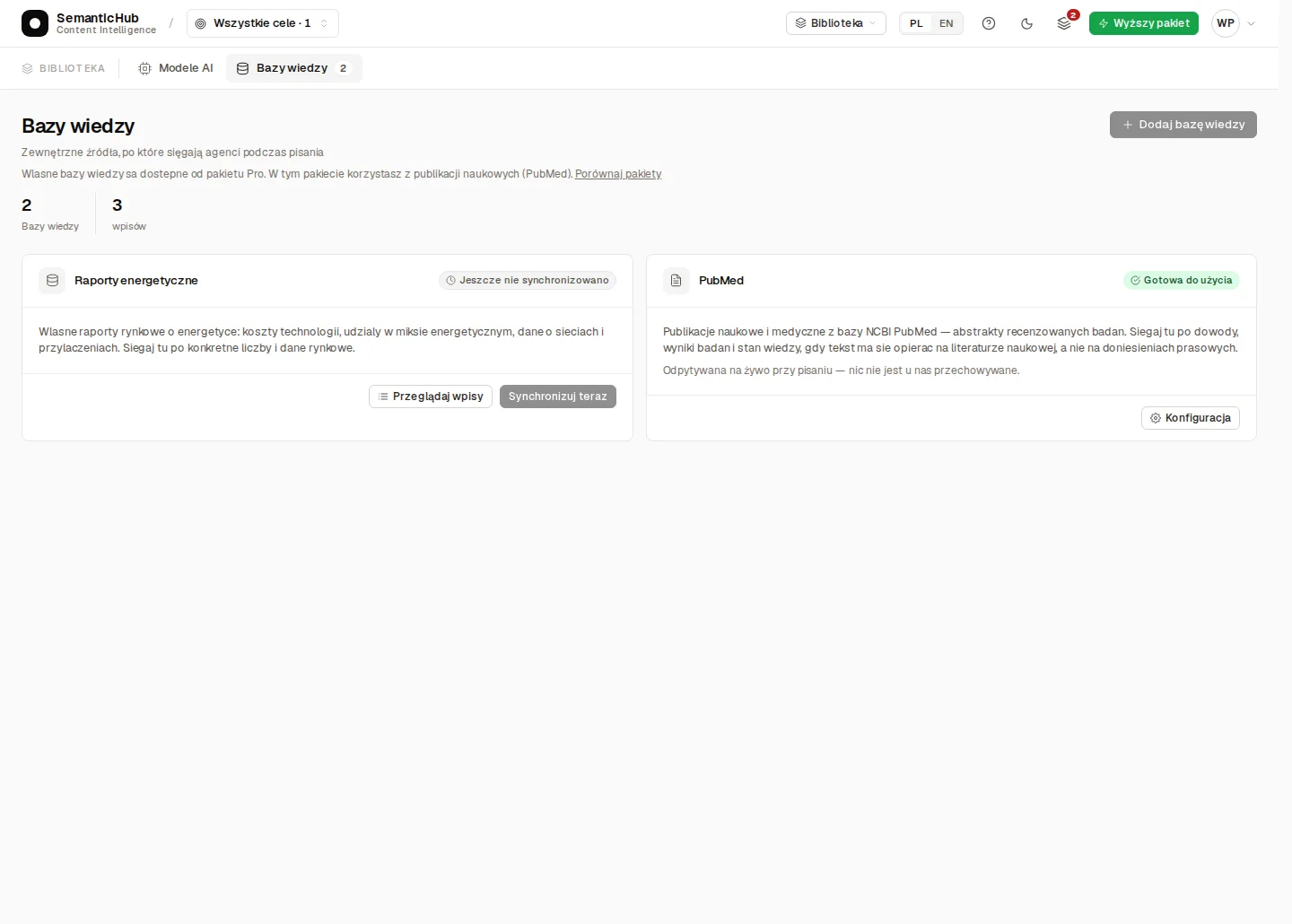
Knowledge bases give an agent context, but they do not form Clusters. PubMed and Wikipedia (pl) are enabled by default on every account, and you can add your own JSON API from the Pro plan.
Mobile overview
You can also use SemanticHub comfortably from your phone
The phone app is already available on Google Play. The iOS version is still waiting for approval.
I built the app to make adding new material as simple as possible. When a proposal is ready for you, you get a notification, and editing it is intuitive and easy. You can now publish without logging in to your CMS.
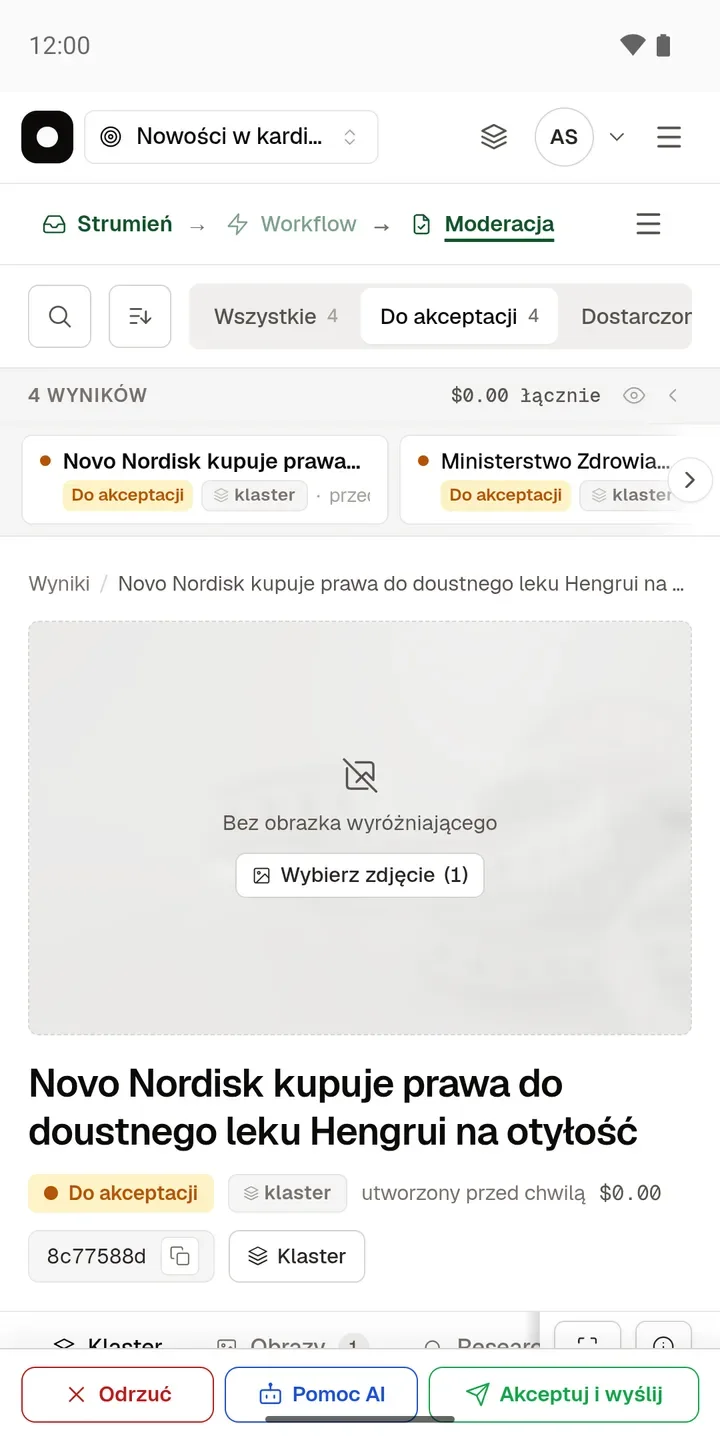
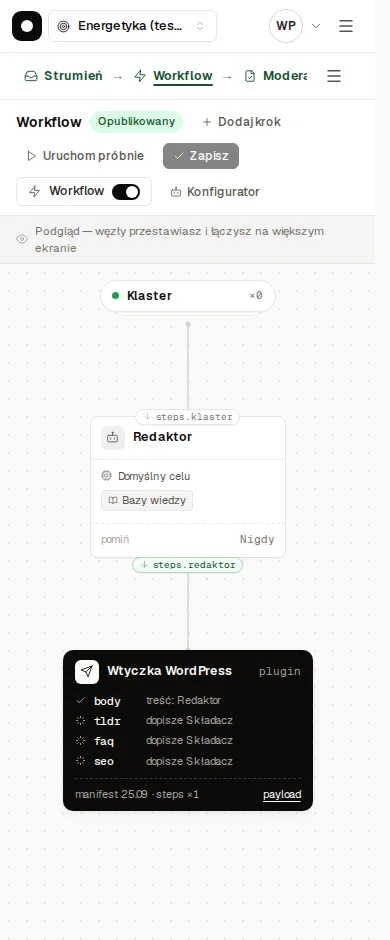
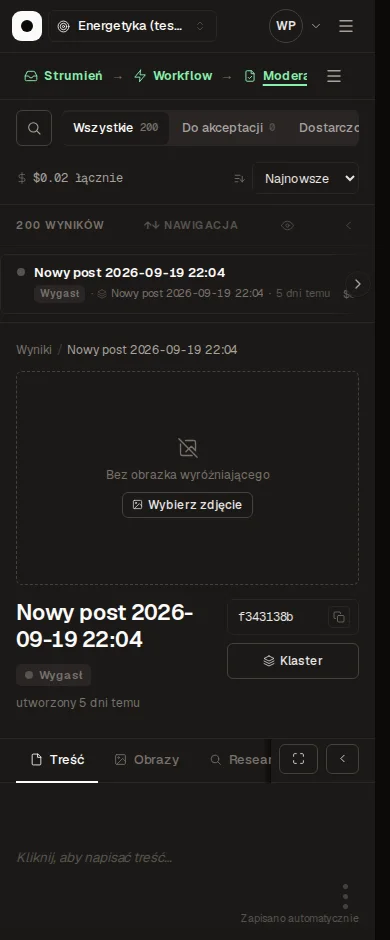
A result, the workflow, and the results queue as seen on a phone.
Working with your own assistant
How do I connect my own AI assistant through MCP?
MCP lets you connect your own assistant, such as Claude, ChatGPT, or Cursor, to SemanticHub. The assistant gets access to Goals, Sources, Clusters, results, and Workflows within the permissions you grant, so you can ask about collected material without pasting texts into the chat.
Claude
You ask for an overview of a Goal and for the Clusters related to your question. The plugin makes connecting easier, and you still judge the answer by its sources.
ChatGPT
You compare the topics you have gathered and discuss a chosen Cluster, for example the differences between reports. You grant access when you connect.
Cursor
You work with the Goal configuration and Workflow. The scope of changes depends on permissions, and it is worth reviewing the configuration before it runs a real delivery.
The connection uses OAuth. You grant read or write permissions and can disconnect the assistant at any time under "Connected apps". The assistant never receives your password or billing details.
MCP calls have daily limits: 300 on the Free plan, 3,000 on Pro, and 20,000 on Scale.
Plans and getting started
How much does SemanticHub cost, and where do I start?
Start with the Free plan: it is free permanently, with no card and no trial period. Pro costs PLN 99 per month or PLN 990 per year, and Scale costs PLN 299 per month or PLN 2,990 per year. Prices are net, current as of October 7, 2026, and may change, so check the pricing page for current values. The annual fee equals ten months, and bringing your own AI key (BYOK) is available from the Pro plan.
You can find current prices and limits for all plans on the SemanticHub pricing page.
How do I add my first Goal?
The easiest way to set up your first Goal is through Autopilot. You fill in a single field, "What do you want to monitor, and why?", and the system picks Sources, the Filter, thresholds, and the Workflow. The Goal stays in test mode, so it sends nothing until you turn on delivery yourself. Setting up your first Goal takes about 15 minutes. The first result appears only after new publications, because a Goal does not pick up older material.
Product limits
What won't SemanticHub do for you?
The software has clear limits, and I want to point them out.
- Everything is built on large language models (LLMs), which can give wrong answers.
- The Filter is about 97% accurate with a well-written prompt, so it can occasionally miss something important (a few items out of several hundred assessed).
- A human should always make the final decision.
- We respect sites' scraping settings, so not every site can be used as a source.
- Suggested images come from free stock libraries but also from the sources themselves, so you need to hold the rights to use them before you do.
Two rules apply when working with results. A finished result does not prove that all relevant publications on a topic were collected, because fetching the source, the Filter, grouping, and the model's text may each need correcting. The rights to publish fetched material remain with the editor.
Start with sources you can judge yourself, and check whether the selection of material matches your own judgment. Only then expand the Goal.
Frequently asked questions
Author: Krystian Magdziarz · Updated: